

 IPTV installation on Dreambox, Vu+ and similar devices (Enigma2)
  How to install an IPTV Subscription on Roku
  Smart IPTV errors: “Server (URL) connection timeout”, “Check playlist URL”...
  HOW TO PUT YOUR IPTV SUBSCRIPTION ON THE DUPLEX PLAY APP
  How to find/show/unhide/reveal Developer Options on an Amazon Fire TV Stick
  TUTORIALS
  FAQ
FAQ 


HOW TO ACTIVATE YOUR IPTV SUBSCRIPTION ON THE KODI APP
To watch our large playlist of channels and VODs directly on your Kodi application, it's very simple, we'll show you how to do it in a few minutes!
To start, order your m3u file link on IPTV SUBSCRIPTIONS
You have your m3u link in your hands, perfect!
Launch your Kodi application and click on TV
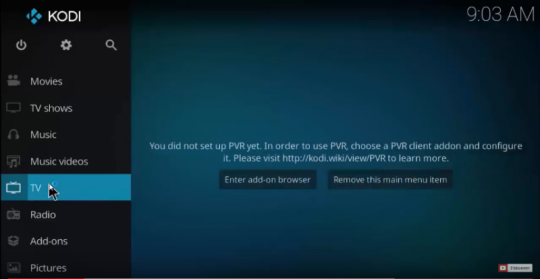
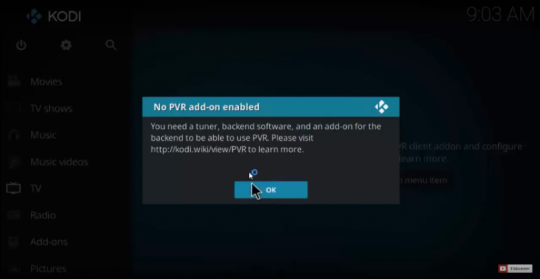
A message appears, asking you to install the addon “PVR IPTV Simple Client”, click OK
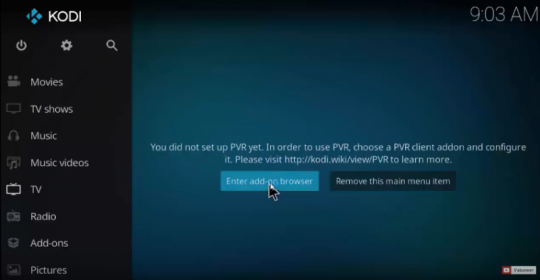
Afterwards, click on the “Enter add-on browser” button to display the list of addons
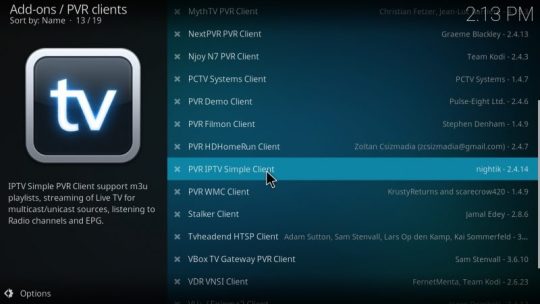
A list of addons will appear on your screen, scroll down a bit and look for “PVR IPTV Simple Client” and click on it
The addon page appears on your screen, click on “Enable” to activate the addon
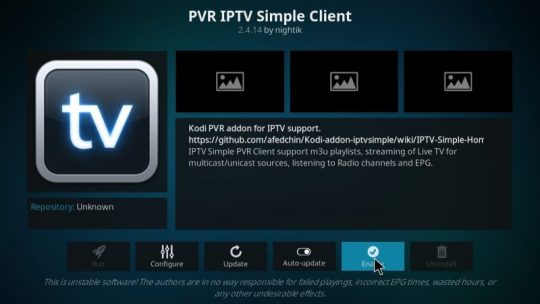
Once our addon is activated, we click on “Configure”
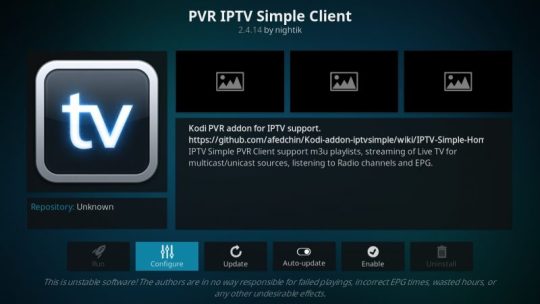
On the settings page, we choose on the part “Location” = “Remote Path (Internet Address), this option will allow us to put the link of our m3u file (it is recommended to choose Remote Path and not Local path to receive the playlist updates automatically
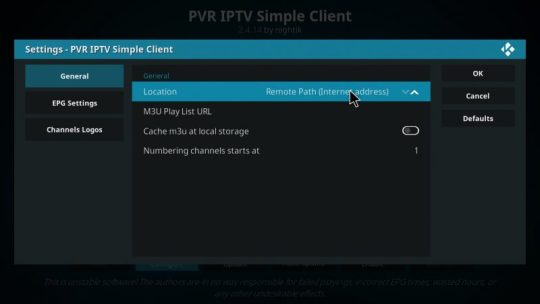
Then, we click on “m3u Play list URL” to put the link of our m3u file
Paste or type your m3u link

